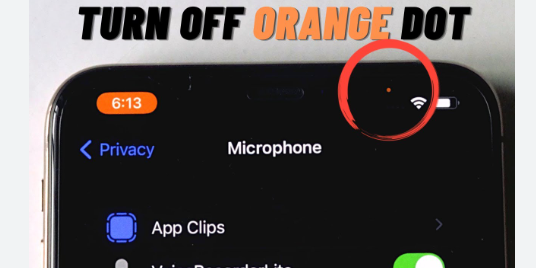
iPhone Myths vs. Reality. The rumor mill has produced tales about this dot being an indication that someone is secretly listening in on your talks, sending shivers down your spine and prompting concern. However, the truth is not as ominous as the misconceptions spreading on social media would have you assume.1
With the release of iOS 14, Apple added these colored indicators as a security feature.2 The orange dot indicates that an app is now using your iPhone’s microphone. Similarly, its green equivalent denotes an app that uses either the camera or both the camera and microphone functions.
When To Worry (And When Not To). Contrary to popular belief, the presence of an orange dot does not necessarily indicate that someone is listening in on your talks. Instead, it merely refers to a program that uses the microphone. It could be a social media site or chat app that needs access to the microphone to function properly.
If the orange dot makes you anxious, you may control app permissions on your iPhone.3 Go to Settings, then Privacy and Security, and finally Microphone. From there, you can select which apps have access to your microphone and withdraw permissions for those that you are unhappy with.
Managing the iPhone’s Orange Dot. Step 1: Investigate the Offender. Swipe down from the upper right corner of your screen to reach the Command Center. If an app recently used your microphone, a notification will show on top. Tap it to reveal the app responsible for the dot.
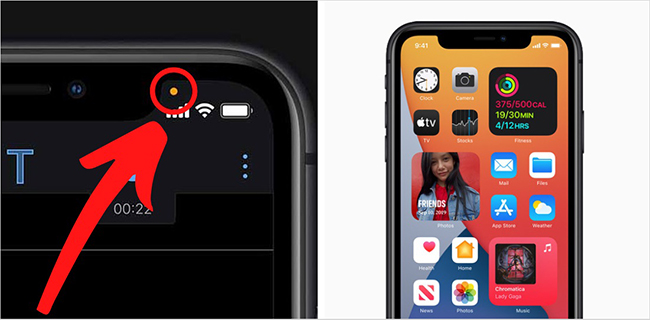
Step 2: Take Control in the Settings. If you locate an app to which you are uncomfortable providing microphone access, it is time to change. Navigate to iPhone Settings, then Privacy, then finally Microphone. You can evaluate which apps have requested access to your microphone and adjust permissions accordingly.
Step 3: Adjusting the Accessibility Settings. For individuals who find the orange dot bothersome or confusing, there is an option to change its look to a square. Navigate to Settings, select Accessibility, and then Display & Text Size. To transform the orange dot into a square shape, toggle on “Differentiate Without Color”.

Remember, it’s not just about the orange dot; it’s about being comfortable with how your apps use your device’s functionality. If you’re concerned about camera access, the green dot, or general app permissions, repeat the procedures in Privacy settings to control access to your camera and other features.
Ultimately, your iPhone gives you control over app permissions. You have the authority to authorize or refuse access to any data gathering device, including the microphone and camera.
The presence of an orange dot on your iPhone is not reason for alarm. With an understanding of its significance and the ability to change app permissions, you can confidently traverse your device’s privacy landscape.